How to show multiple time zones on a Mac
To see several time zones on a Mac, add cities in the Clock app’s World Clock, or add a World Clock widget to Notification Center or the desktop. The macOS menu bar clock shows only one time zone; a second clock in the menu bar needs an app, such as Nones Pro.
Last checked: October 2026 on macOS 26 Tahoe. The same steps work on macOS 14 Sonoma and 15 Sequoia.
If you work with people in other cities, you check their time many times a day. macOS has several ways to do it, but none of them put a second clock in the menu bar. Here is what each built-in option does well, and where an app helps.
The Clock app
macOS 13 Ventura and later include Clock, the same app as on iPhone. Open it from the Applications folder or Spotlight, choose World Clock, and click + to add cities. Each city shows its local time and how many hours ahead or behind it is. It is the clearest built-in view, but it is a window you have to open.
A World Clock widget
- Click the date and time in the menu bar to open Notification Center.
- Click Edit Widgets at the bottom.
- Choose Clock and add a World Clock widget. Click the widget while editing to pick its cities.
The same widget can go on the desktop, where it stays visible when windows are out of the way. It shows the current time only; you cannot look ahead to see what time 3 PM here will be there.
Spotlight
Press Command-Space and type “time in Tokyo” or “time in London”. Spotlight answers with the local time. It is fast for a single question, and it forgets the city as soon as you close it.
Time zone support in Calendar
For planning a meeting, Calendar can work in more than one zone:
- Open Calendar, then choose Calendar › Settings.
- Click Advanced and turn on Turn on time zone support.
- A time zone menu appears in the toolbar. Switch the whole calendar to another zone, or set a time zone on a single event in its details.
What macOS does not do
The menu bar clock shows one time zone, the one set in System Settings › General › Date & Time. There is no setting for a second clock beside it, and no built-in way to slide a time forward and see it in several cities at once.
How Nones does it
Nones is a menu bar calendar for Mac. Nones Pro adds time zones:
- Up to three extra clocks in the menu bar, each with a short label, beside the date.
- A world clock in the panel, under the month, with each city’s local time and a +1 when it is already tomorrow there.
- A slider that moves every clock together, so you can find an hour that works in New York, London and Tokyo. Reset returns to now, and Create Event starts an event at the chosen time.
- Both times on events whose time zone differs from yours, and typed entry that understands “Call 3pm PT” or “9am London”.
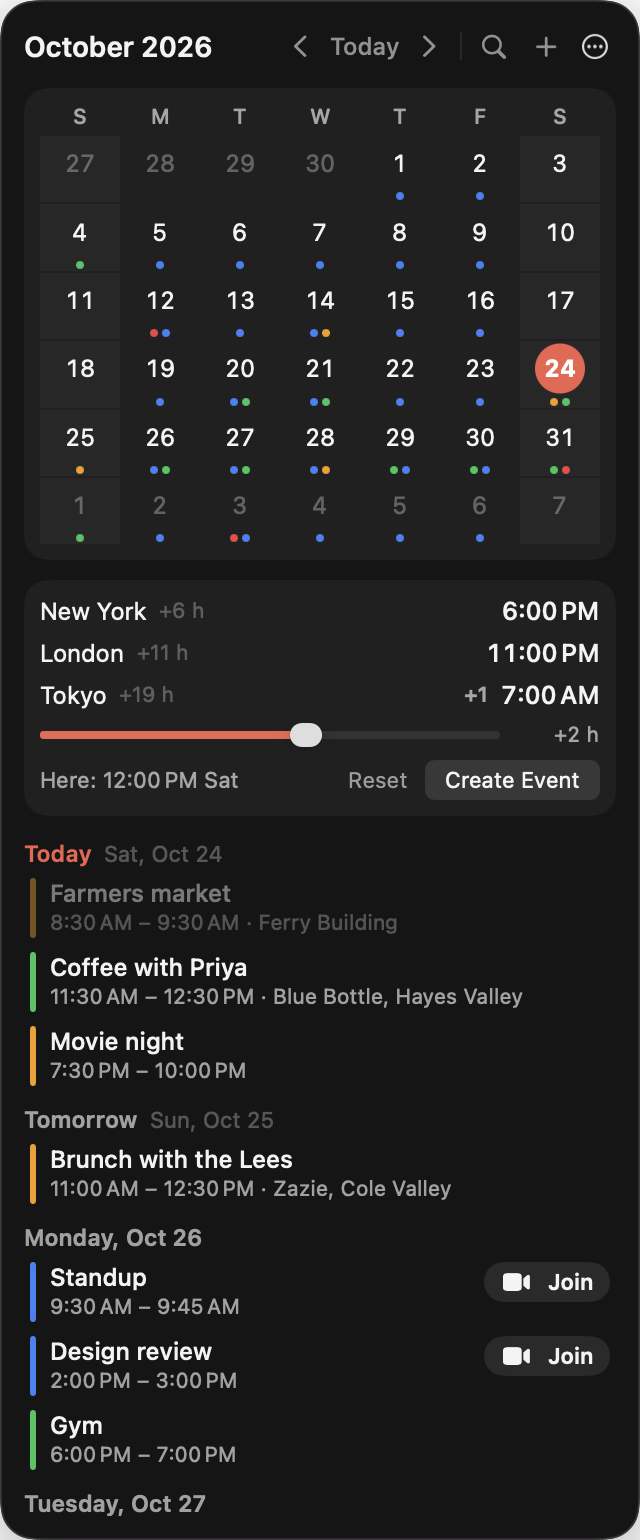
Nones itself is free: the date in the menu bar, the month grid, the agenda and Join buttons for video calls cost nothing. Pro is $9.99 once, with no subscription, and the download includes a 14-day free trial of Pro. One key works on up to 3 Macs. macOS 14 Sonoma or later. See also a calendar in the Mac menu bar and how Nones compares.
Download for Mac Buy Pro, $9.99
Questions
Can the macOS menu bar clock show two time zones?
No. The built-in menu bar clock shows one time, in the time zone set in System Settings > General > Date & Time. Extra clocks in the menu bar need an app.
How do I quickly check the time in another city on a Mac?
Press Command-Space and type time in Tokyo, or any city. Spotlight shows the local time there.
How do I schedule a meeting across time zones in Calendar?
In Calendar, open Settings > Advanced and turn on time zone support. A time zone menu appears in the toolbar, and each event can have its own time zone.