Nones
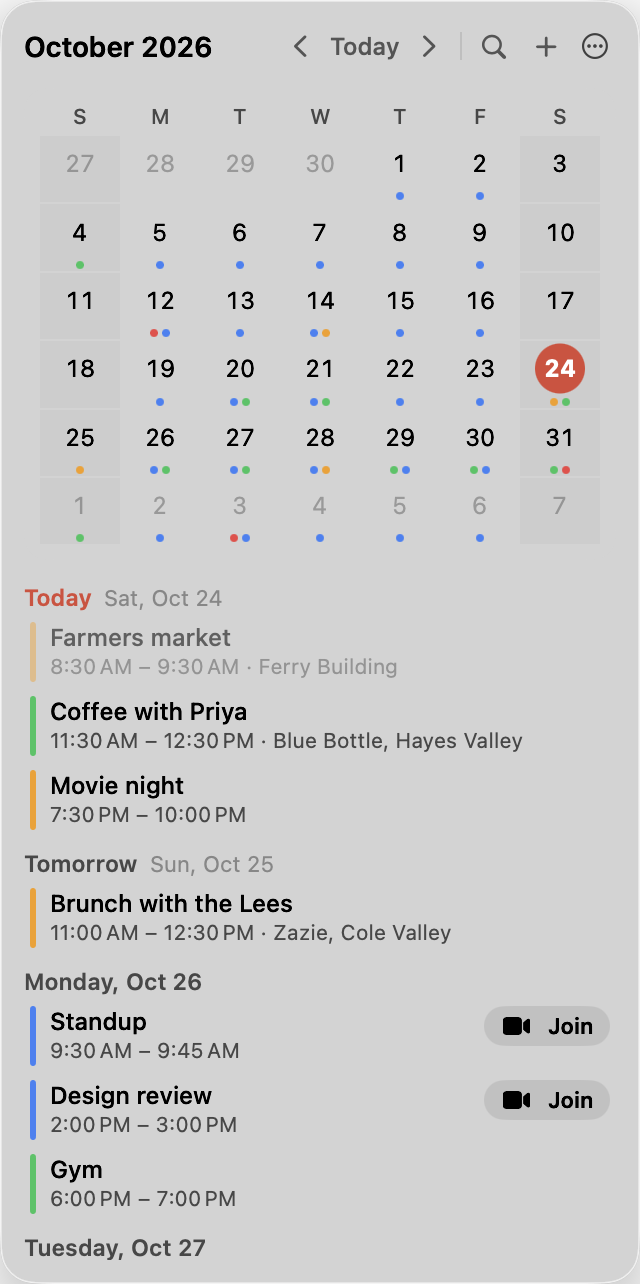
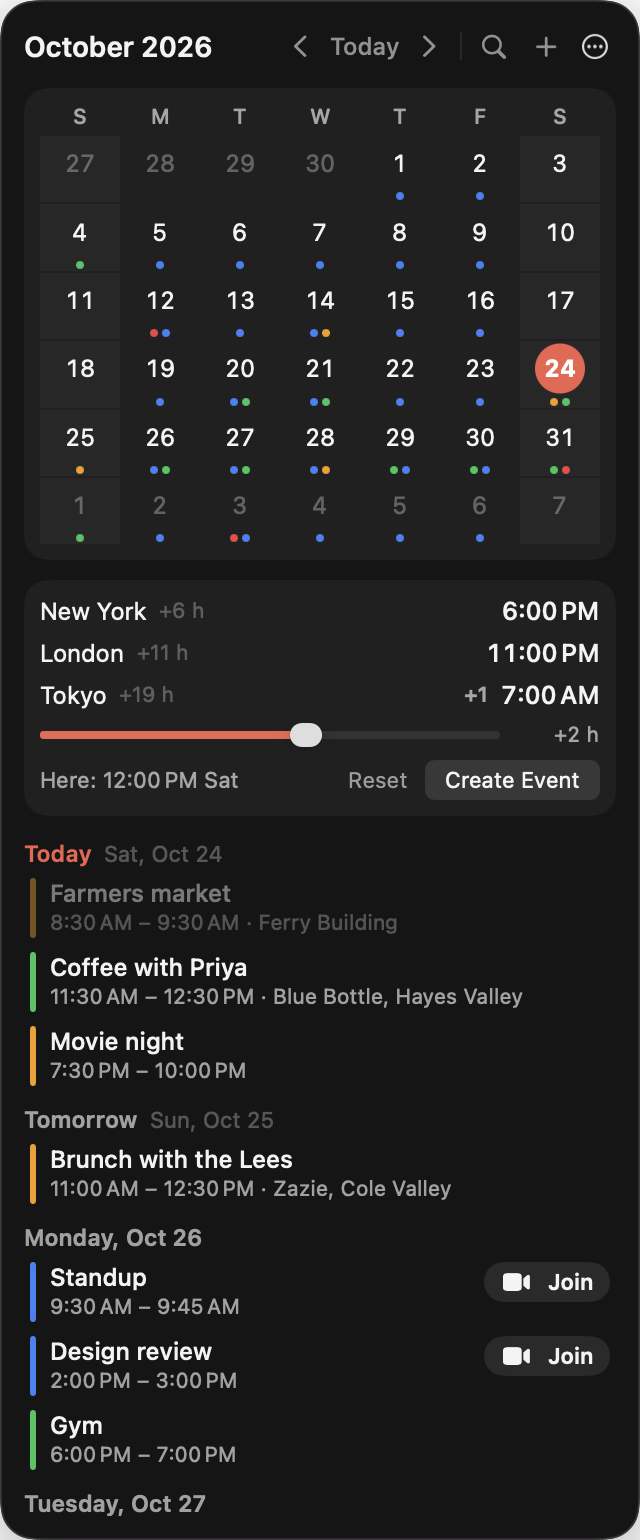
Nones is a menu bar calendar for Mac that shows today’s date in the menu bar and opens a month calendar with your next events when you click it. It uses the calendars you already have in macOS: iCloud, Google and Exchange.
From the menu bar
Click the date in the menu bar. The month and your next days drop down, and close again when you click elsewhere.
What Nones does
Everything in the first group is free. Items marked Pro are part of the $9.99 purchase and of the 14-day trial.
Today's date in your menu bar
As a day-number icon, as text in any format you like (Sat 24 Oct, 14:05, or your own pattern), or both.
Month calendar
Week numbers, shaded weekends, today marked, and coloured dots on days with events.
Your next days at a glance
An agenda under the grid for 1 to 31 days, all-day events first. Click a day to see its events.
Works with your calendars
iCloud, Google, Exchange and any calendar set up in macOS. Pick which ones show.
Keyboard shortcut
Open Nones from anywhere with a shortcut you choose. Arrow keys, T for today and N for a new event inside.
Bring your Itsycal settings
Nones reads your Itsycal menu bar format, week settings, calendars and shortcut, and offers to copy them.
Join video calls in one click
Zoom, Google Meet, Teams, Webex, FaceTime, Slack and more. Press ⌘J to join the current meeting. Opens the Zoom or Teams app when it is installed.
Designed for macOS Tahoe
Liquid Glass on macOS 26, with the same layout on macOS 14 and 15. Light and dark, three text sizes.
Light on battery
The menu bar updates once a minute, and Nones reads your calendars only when they change.
No account, no tracking
Your events stay on your Mac. Nones has no server and no analytics.
Type events in plain English Pro
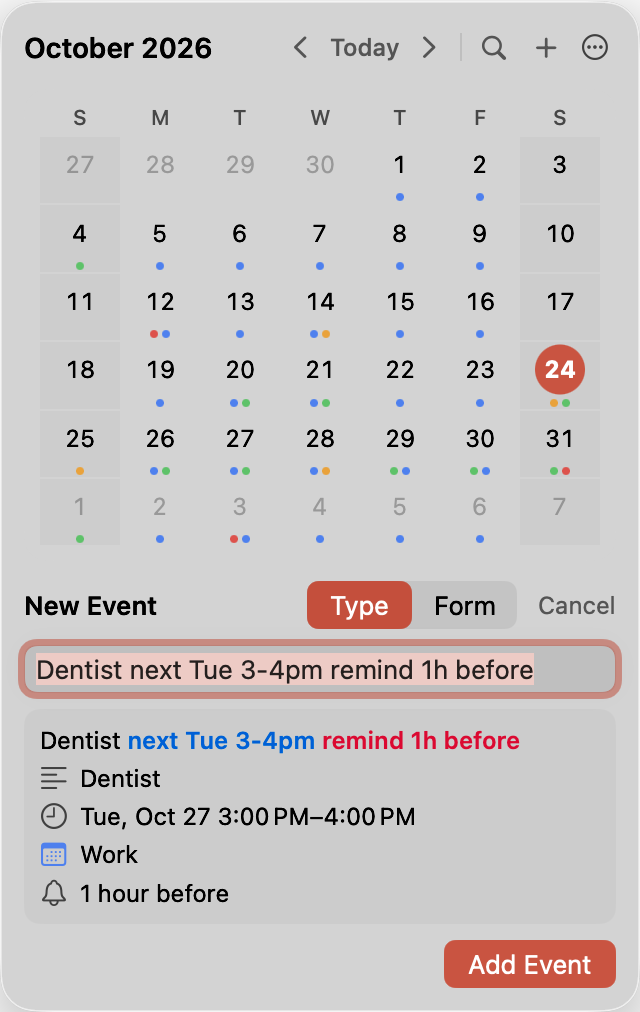
"Lunch with Sam tomorrow 1pm at Bruno's". A live preview shows the date, time, place, repeat and alert before you add it.
Your next meeting in the menu bar Pro
"Standup in 12 min", with a Join item in the menu and a shortcut that joins without opening Nones.
Meeting alerts you can't miss Pro
A notification before each meeting with Join and Snooze, and an optional full-screen alert when it starts.
Time zones and a world clock Pro
Up to three clocks in the menu bar, and a world clock with a slider for planning a time across cities.
Edit and delete events Pro
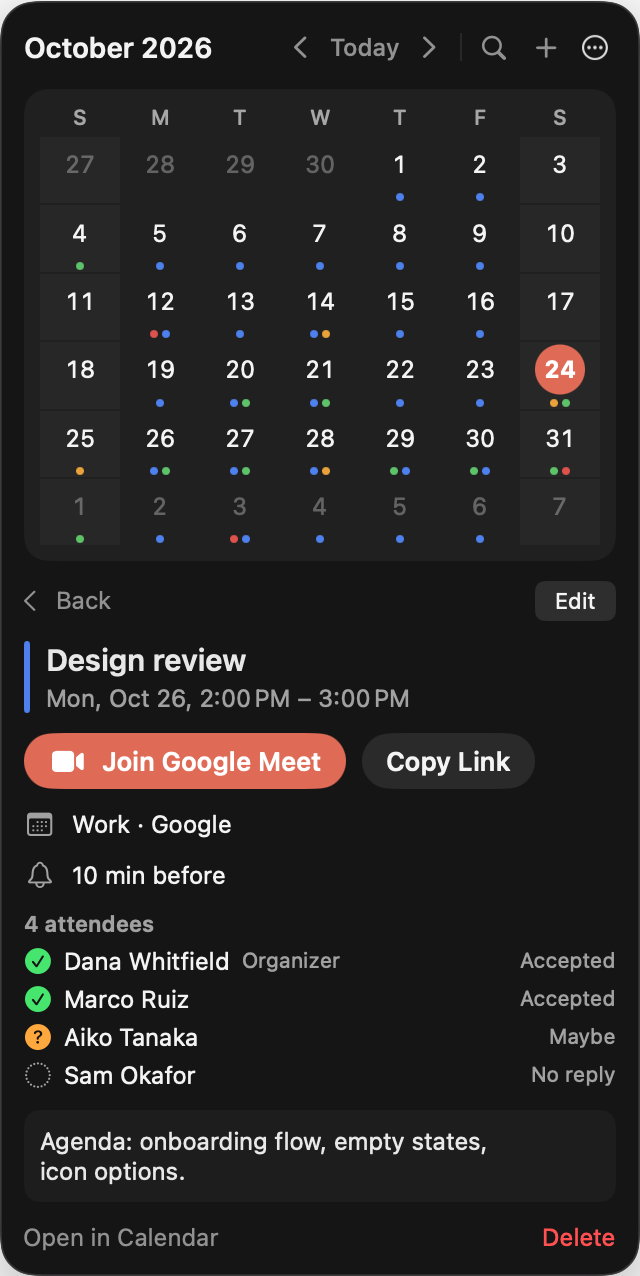
Change the title, time, calendar, place, alert or repeat without opening Calendar. Deleting is free and ⌘Z brings an event back.
Reminders alongside your events Pro
Due reminders from the lists you choose, with a checkbox to complete them.
Widgets for your desktop Pro
Month, Up Next with a Join button, and World Clock, for the desktop and Notification Center.
Search your calendar Pro
⌘F finds events by title, place or notes across the past year and the year ahead.
Calendar sets Pro
Named groups like Work and Home, switched from the panel.
Pricing
Nones is free to use. Pro is one purchase with no subscription. The download includes a 14-day free trial of Pro; after it, Nones keeps working as a free calendar.
Basic
- Date or clock in the menu bar
- Month grid, week numbers, event dots
- Agenda and event details
- All your macOS calendars
- Quick add form and delete with undo
- Join buttons and ⌘J
- Keyboard shortcut and Itsycal import
Nones Pro
- Everything in Basic
- Typed entry in plain English
- Next meeting in the menu bar, join shortcut
- Meeting alerts with a full-screen option
- Time zones and world clock
- Event editing, reminders, search, calendar sets
- Widgets
- One license key for up to 3 Macs
Details
- System requirements
- macOS 14 Sonoma or later. Apple silicon and Intel Macs.
- Calendars
- Reads the accounts in System Settings > Internet Accounts through Apple's calendar framework. Needs calendar access, which Nones asks for only when you press Allow.
- Updates
- Nones checks for updates and installs them when you agree.
- Purchase
- Sold by Tundra Industries through Stripe. 14-day refunds. Your license key arrives by email.
- Privacy
- No account and no analytics. The only network requests are the license check and update checks. Privacy
- Help
- Answers to common questions and how to reach us are on the support page.
Guides
How to do common calendar tasks on a Mac, with the built-in steps first. All guides
Questions
Is Nones free?
Yes. The date in the menu bar, the month grid, the agenda, all your calendars, the quick add form and Join buttons are free. Nones Pro is $9.99 once, with no subscription.
How does the free trial work?
The download includes a 14-day free trial of Pro. When it ends, Nones keeps working as a free calendar. Nothing is blocked and no card is needed.
How many Macs can I use one license key on?
Up to 3 Macs. To move a key, choose Deactivate This Mac in the License window and enter the key on the other Mac.
Which Macs and macOS versions does Nones support?
macOS 14 Sonoma or later, on Apple silicon and Intel Macs. On macOS 26 Tahoe it uses Liquid Glass.
Which calendars does Nones work with?
iCloud, Google, Exchange and any other calendar added in System Settings > Internet Accounts. Nones reads them through Apple’s calendar framework, so there is nothing to sign in to inside Nones.
Does Nones collect my data?
No. Nones has no account, no server and no analytics. Your events stay on your Mac. The only network requests are the license check and update checks.
Can I get a refund?
Yes. Email support@tundra.industries within 14 days of purchase for a full refund. After a refund the key stops unlocking Pro and the free version keeps working.
Are updates included?
Yes. The license covers the current major version of Nones and its updates. Nones checks for updates and installs them when you agree.
How is Nones different from the clock in the macOS menu bar?
The built-in clock can show the date, but clicking it opens Notification Center, not a calendar. Nones opens a month grid with week numbers and your next days, with Join buttons for calls, and Pro adds typed entry, meeting alerts and time zones.
Can I bring my Itsycal settings?
Yes. Nones reads your Itsycal menu bar format, week settings, calendars and shortcut, and offers to copy them in the welcome window or in Settings > General.