How to put a calendar in the Mac menu bar
To put a calendar in the Mac menu bar, first turn on the date in System Settings > Menu Bar > Clock Options (Control Center on macOS 14 and 15), then add a Calendar widget to Notification Center, which opens when you click the date. macOS has no month calendar that drops down from the date itself; for that you need a menu bar calendar app such as Nones, which is free.
Last checked: October 2026 on macOS 26 Tahoe. Differences for macOS 14 Sonoma and 15 Sequoia are noted.
The Mac menu bar shows the time, and it can show the date. It does not show a calendar when you click it. This page covers what macOS can do on its own, where its limits are, and how a menu bar calendar app fills the gap.
Show the date and day in the menu bar
- Open System Settings.
- Click Menu Bar in the sidebar. On macOS 14 Sonoma and 15 Sequoia, click Control Center.
- Find Clock and click Clock Options.
- Set Show date to Always, and turn on Show the day of the week.
More options, such as seconds and an analog clock, are covered in how to show the date in the Mac menu bar. The menu bar now reads something like “Tue 27 Oct 10:41”. The order and the 12- or 24-hour clock follow System Settings › General › Language & Region and Date & Time. You cannot pick your own pattern, add week numbers, or show the date as a day-number icon.
See a calendar from the menu bar
Clicking the date and time opens Notification Center. You can add Calendar widgets there:
- Click the date and time in the menu bar.
- Scroll to the bottom and click Edit Widgets.
- Choose Calendar and add the size you want. The small widget shows today, the medium and large ones show the month or the next events.
The same widgets can sit on the desktop (see calendar widgets on the Mac desktop). They are a quick look, not a calendar you work in: you cannot move to next month, click a day to see its events, or add an event from the widget. Clicking an event opens the Calendar app.
Other built-in shortcuts
- Keep Calendar in the Dock. Its icon shows today’s date.
- Press Command-Space and type “Calendar” to open it. In Calendar, the + button (Quick Event) accepts typed events such as “Lunch with Sam Friday noon”.
- Calendar’s own Settings › Advanced has a “Show week numbers” option for the app window (see week numbers on a Mac calendar).
Each of these opens a full window. For a glance at the month while you write an email or schedule a call, that is a lot of switching.
How Nones does it
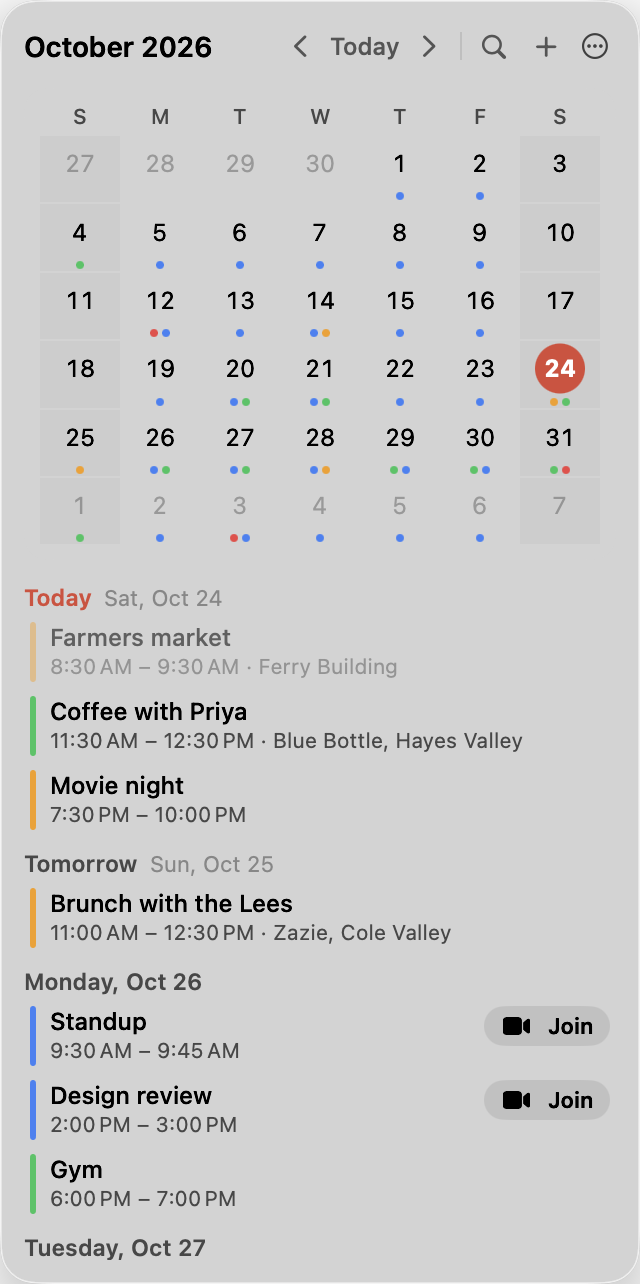
Nones is a free menu bar calendar for Mac. It puts today’s date in the menu bar, as a day-number icon, as text in any format you choose, or both. Click it and the month drops down with your next days underneath, then closes when you click elsewhere.
Free in Nones:
- Month grid with week numbers, shaded weekends and coloured dots on days with events.
- An agenda for 1 to 31 days. Click a day to see its events.
- Events from iCloud, Google, Exchange and any calendar set up in macOS. Pick which ones show.
- A keyboard shortcut to open it from anywhere, with arrow keys, T for today and N for a new event.
- Join buttons for Zoom, Google Meet, Teams, Webex, FaceTime and more, and ⌘J to join the current meeting.
- A quick add form, and delete with undo.
Nones Pro, $9.99 once, adds typed entry in plain English, your next meeting in the menu bar, meeting alerts, time zones and a world clock, event editing, reminders, search, calendar sets and widgets. See time zones in the menu bar and how Nones compares.
Nones reads your calendars through macOS. It has no account and no analytics, and your events stay on your Mac. macOS 14 Sonoma or later.
Download for Mac Buy Pro, $9.99
Questions
Can the Mac menu bar show week numbers?
Not with the built-in clock. Calendar can show week numbers in its own window. Nones shows them in its month grid, one click from the menu bar.
Why don’t I see the date in my menu bar?
Check Clock Options and set Show date to Always. On a MacBook with a notch, macOS hides items that do not fit, so a shorter format or fewer menu bar items can help.
Does a menu bar calendar replace the Calendar app?
No. Nones reads and writes the same calendars as Calendar. Pressing Return in the Nones panel opens Calendar.