How to join Zoom, Meet and Teams meetings from the Mac menu bar
To join a Zoom, Google Meet or Teams meeting from a Mac, open the event in Calendar and click the meeting link in its location, URL or notes. macOS has no Join button in the menu bar, so joining from the menu bar takes a menu bar calendar app such as Nones, which shows a Join button on every event with a video link and joins the current meeting with Command-J. That part of Nones is free.
Last checked: October 2026 on macOS 26 Tahoe. The same steps work on macOS 14 Sonoma and 15 Sequoia.
Join from the Calendar app
- Open Calendar and find the meeting. Press Command-T to go to today.
- Double-click the event to open its details.
- Find the link. Zoom and Teams invitations usually put it in the location or the notes; Google Meet invitations put it in the notes, and Calendar shows it as a link.
- Click the link. A Zoom or Teams link opens the Zoom or Teams app if it is installed, or your browser if not. A Google Meet link opens in your browser.
Invitations sent from Outlook sometimes wrap the link in a Safe Links address that starts with safelinks.protection.outlook.com. Clicking it still works; it passes through Microsoft’s check first.
Join from a notification
If the event has an alert, Calendar shows a notification before it starts. Clicking the notification opens the event in Calendar, where you click the link as above. To make sure you get these alerts, see how to get meeting reminders on a Mac.
Make the Zoom or Teams app open the link
- Install the Zoom Workplace or Microsoft Teams app and sign in once. After that, meeting links in your browser offer to open the app.
- When the browser asks whether to open the app, tick the option to always allow it, so the next link opens straight into the meeting.
- Google Meet has no Mac app; it runs in the browser. You can install it as a web app from Chrome or Safari if you want it in the Dock.
What macOS does not do
The built-in clock and Calendar widgets show your next event, but not a Join button for Zoom, Meet or Teams links. There is no keyboard shortcut that joins the meeting that is starting now, and nothing in the menu bar counts down to your next meeting.
With Nones
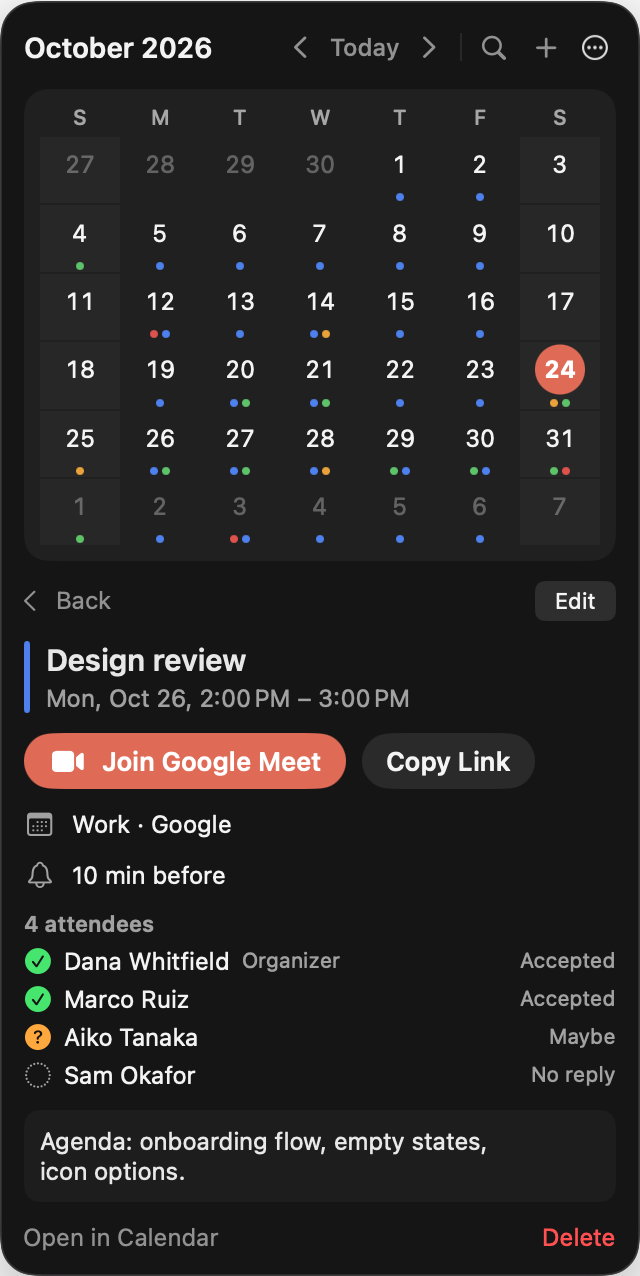
Nones is a menu bar calendar for Mac. It reads the calendars already set up in macOS and finds meeting links in each event’s URL, location or notes, including Outlook Safe Links. Free in Nones:
- A Join button on every event with a video link, in the agenda and in the event details.
- Command-J in the panel joins the meeting in progress or the one starting within 5 minutes.
- Copy Meeting Link in the event menu.
- Links for Zoom (including ZoomGov), Google Meet, Microsoft Teams, Webex, FaceTime, Slack huddles, Whereby, Jitsi, GoTo Meeting, Amazon Chime, Discord, Around, RingCentral, BlueJeans, Skype, Zoho Meeting and Livestorm.
- Zoom and Teams links open in their apps when installed. Settings > Meetings has a switch to open them in the browser instead.
Nones Pro, $9.99 once, adds:
- Your next meeting in the menu bar, for example “Standup in 12 min”, with a Join item in the menu.
- A global Join next meeting shortcut that works without opening Nones.
- A notification before each meeting with Join and Snooze buttons, and an optional full-screen alert when it starts.
The download includes a 14-day free trial of Pro; after it, the free Join buttons keep working. macOS 14 Sonoma or later. No account and no analytics: Nones does not send your events anywhere.
Download for Mac Buy Pro, $9.99
Questions
Why does my Zoom link open the browser instead of the Zoom app?
The Zoom app is not installed, or the browser has not been allowed to open it. Install Zoom, then click a meeting link and choose to open the Zoom app when the browser asks.
Can I join a meeting with a keyboard shortcut on a Mac?
Not with the built-in apps. In Nones, Command-J joins the current meeting from the panel, and Nones Pro adds a global shortcut that joins your next meeting from any app.
Does Nones need access to my Zoom, Google or Microsoft account?
No. Nones reads the events already in macOS Calendar and looks for the meeting link in each event. It never signs in to Zoom, Google or Microsoft.